One shared phone where the crew taps in with a tag
Terminal mode turns one phone into a terminal for a whole crew, at a fixed spot or moving with the team. Workers tap their personal tag, choose the task they finished, answer a few questions, and the screen resets for the next person.
A phone for every worker is not always the right answer. Where the work comes back to one place, the packing area, the entrance of a compartment, a cart that moves with the team, one shared device does the job with far less hardware.
In Terminal mode nobody is signed in. Each worker identifies with their own tag, records what they did, and the terminal is ready for the next person within seconds.
In this video
Migo shows you what Terminal mode is for, and how workers log their time on one shared device.
- The waiting screen. One phone for a whole crew; nobody is signed in, and the screen asks for a tag.
- Who it suits. Registering time and its details at a fixed spot, or at a terminal that moves with the team: less hardware, but workers walk to it, each with a personal tag.
- First tap. Viktor holds his badge to the phone, and his shift starts right away: his first tap of the day is always his shift start. It is confirmed on a full screen in his own language.
- Five seconds. The confirmation closes by itself, and the terminal is free for the next person.
- Task done. Viktor records nothing while he works. Once his task is done he comes back, and a second tap opens the activity list with his name at the top. He chooses Picking, the task he just finished.
- The details. Which row, which crop, which cart, and how many crates. The demo answers from lists, but every answer can also come from a scan: an NFC tag or a QR code, and a barcode on a crate or punnet.
- Activity Logged. Picking is saved from his shift start until this tap, and the screen resets in the organization’s language. His next task runs from this tap until the next one.
- Breaks. Breaks are recorded on their own: he taps his badge and chooses the break, and his next tap ends it. Or set the terminal so he taps only when he is back from the break, and chooses the break, which the list shows as Back from Break with a return arrow. A lunch on his shift template is added for him if he works through it.
One phone, a tag per person, and every hour still lands on the right row.
Tips
- A personal tag for everyone. A terminal has no list of names and no PIN, so a badge for each person is part of setting one up. The Agromigo Admin app writes them.
- Lock it to the app. App lock keeps a shared phone in the Agromigo Crew app only, with no settings or other apps within reach.
- Activity tags save a step. With activity tags on the wall, workers hold the task’s tag instead of choosing from the list.
Read more
The user guide explains what an employee does on a shared phone, how each mode records the day, how to choose a mode and App lock.
Try it free for 1 month.
More stories
-
 1 min
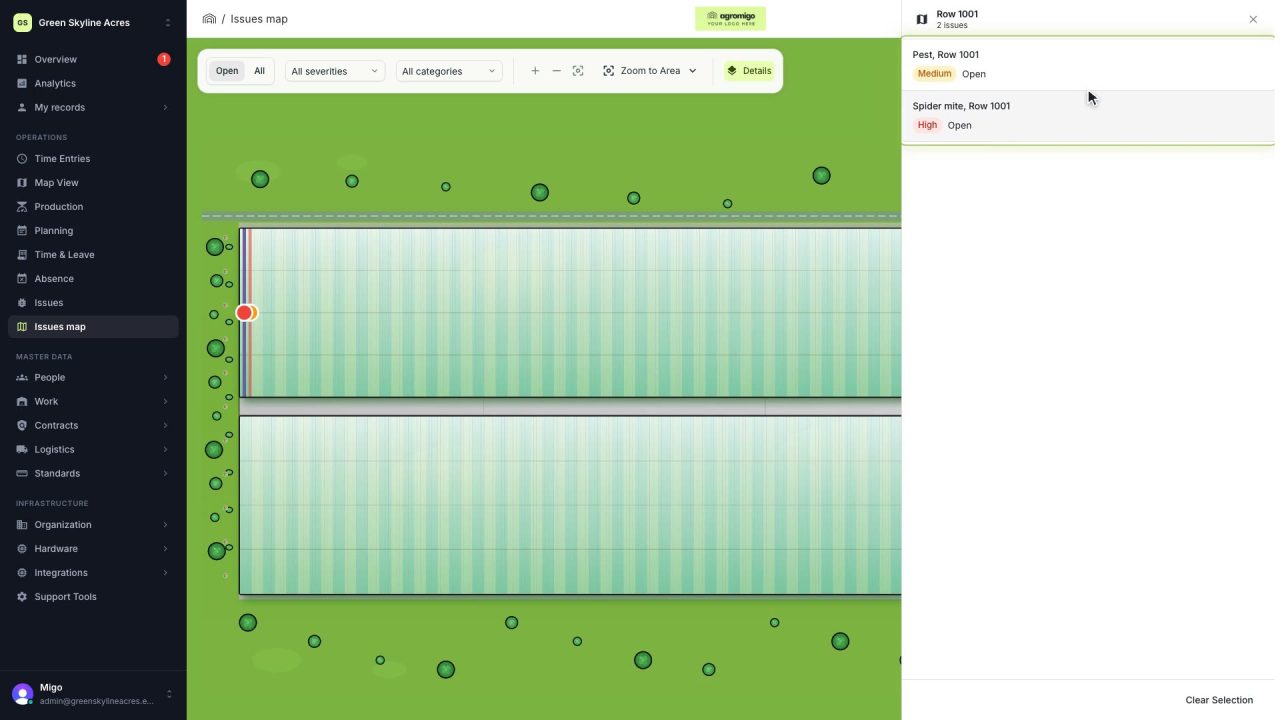
See on one map where every open issue on your site is
The Issues map colours every work area by its most severe open issue, so you see at a glance which rows have a problem and how serious it is.
Read the story -
 1 min
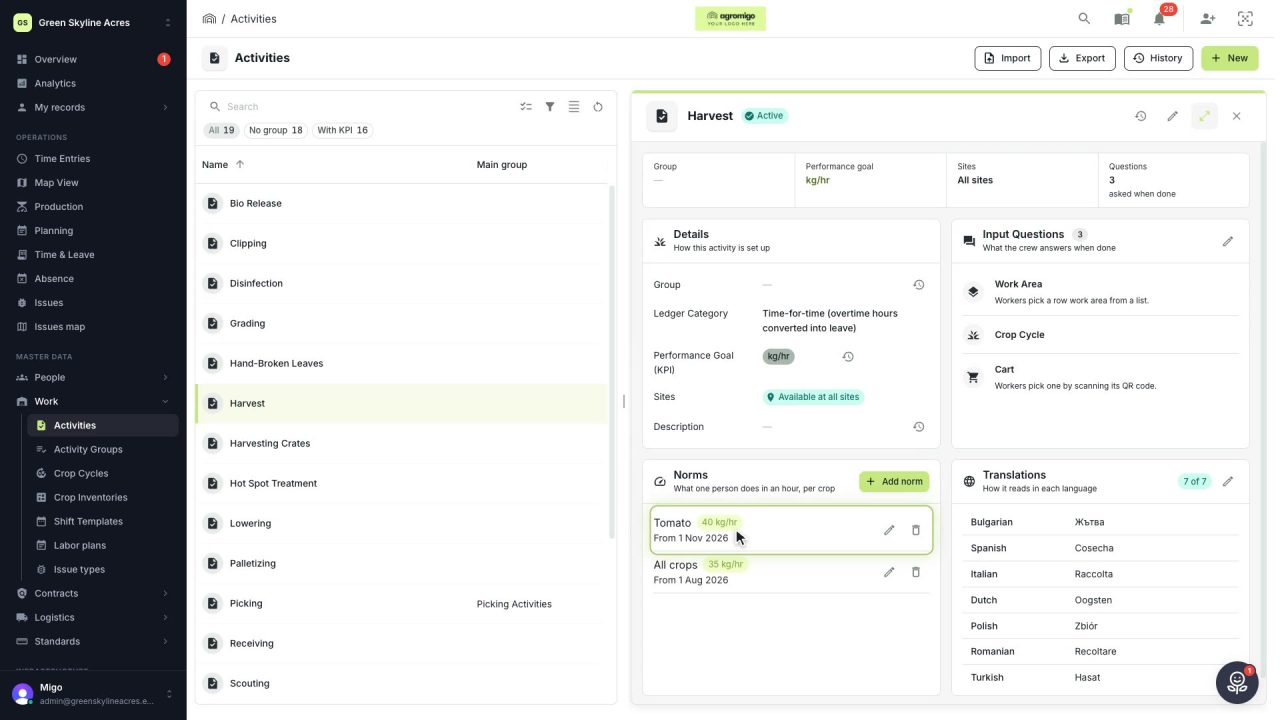
Know how fast the work goes, per crop
Set what one person does in an hour for each activity, per crop cycle and season, so every labor plan turns a target into the hours and people it takes.
Read the story -
 2 min
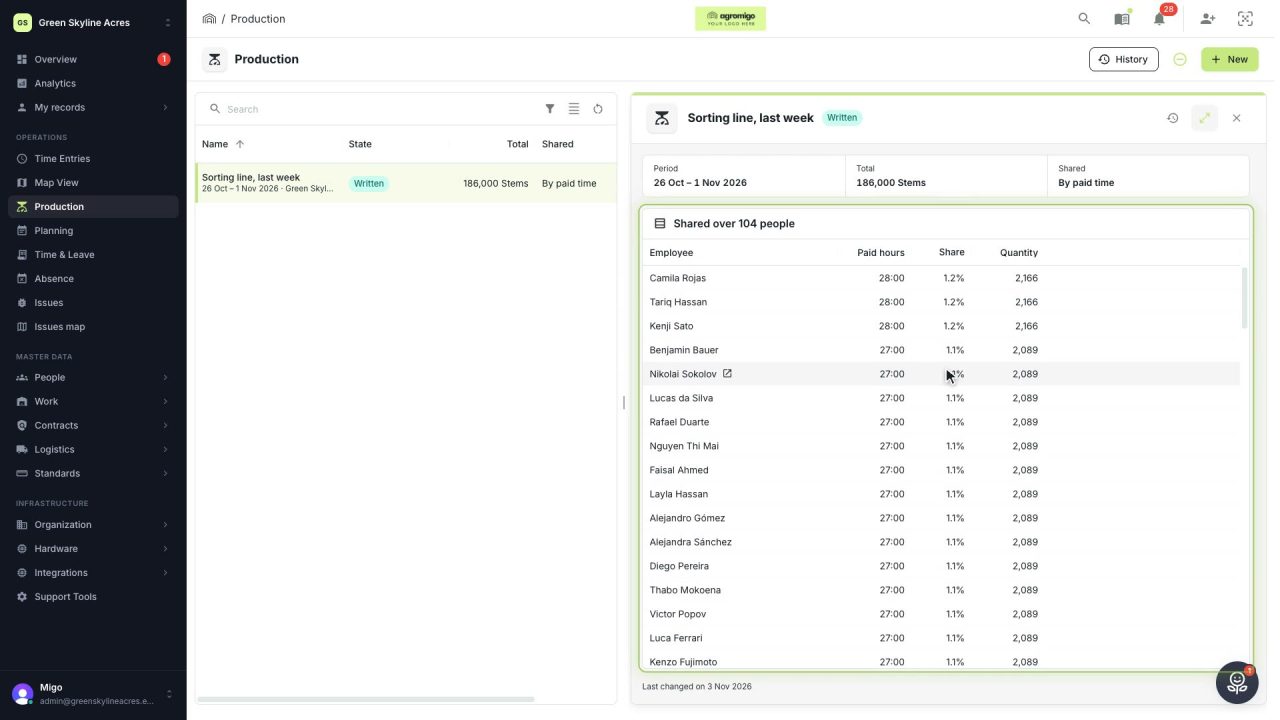
Share a week of production over the people who did the work
A total that is only known in bulk, such as a week of chrysanthemum stems from the sorting line, shared over everyone who worked by their paid hours, onto their own time entries, where it becomes stems per hour per person, team and crop.
Read the story